Upload a sketch, photo or reference drawing behind your Crafti design from Render Options → Scene → Upload Background. You can adjust its visibility, opacity and zoom while placing real parts in front of it.
The background is a visual reference. Uploading it does not turn the picture into 3D geometry or automatically set your design's dimensions.
Before you start
Sign into Crafti and open a design you can save. For a new design, add a part, click Save, give it a name and finish saving before uploading. Upload Background needs a signed-in account and a saved design.
Choose an image you own or have permission to use. Use a file smaller than 5 MB; PNG or JPEG is a practical choice. This control uploads images, rather than importing a PDF document or a 3D-model file.
Upload the background image
1. Open your saved design in the editor.
2. Open Render Options using the small coloured sphere near the lower-left corner of the scene.
3. Under Scene, click Upload Background.
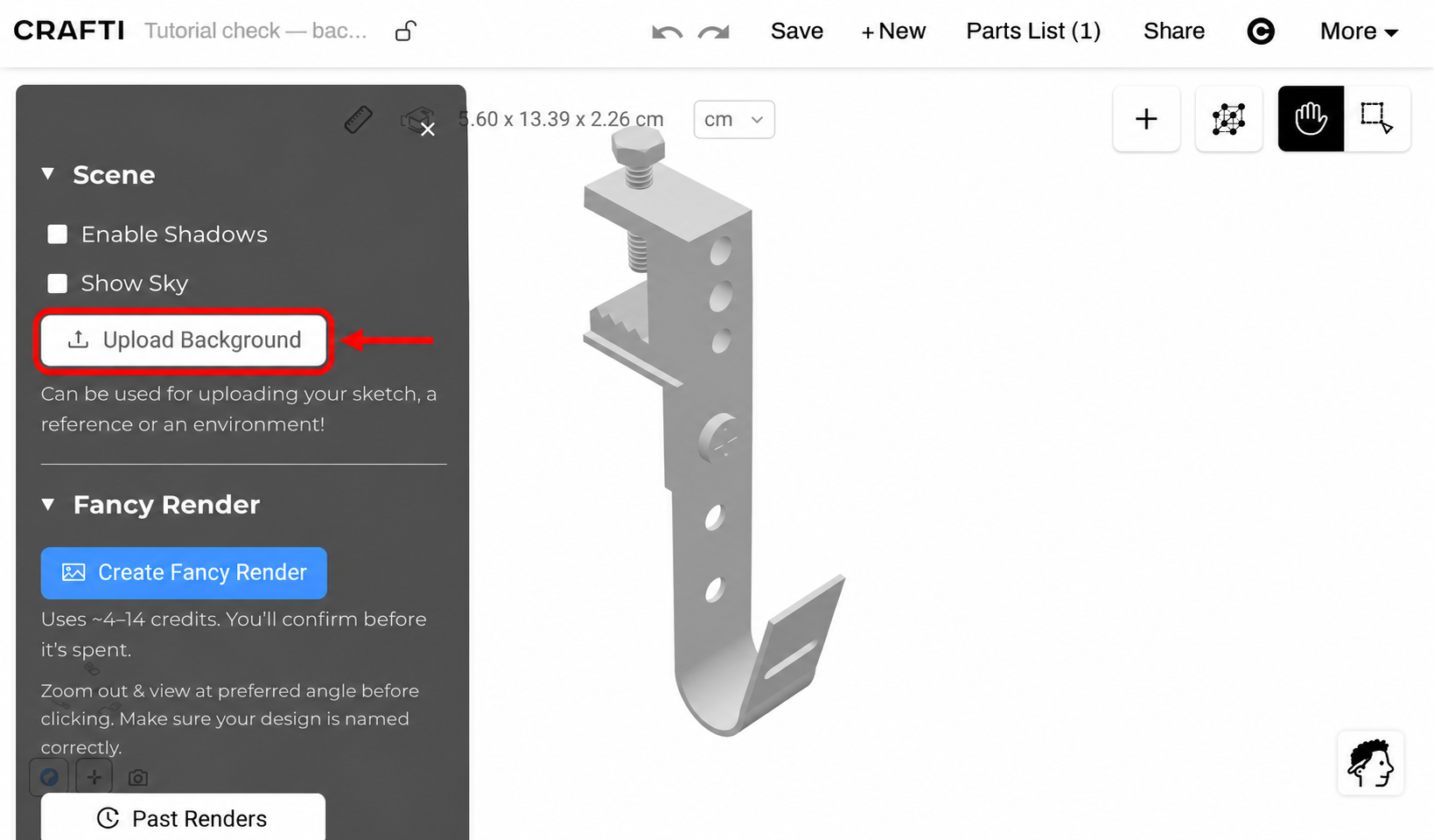
4. Choose the image from your computer and wait for the upload to finish.
5. Check for the Background image uploaded successfully! message, the Background preview in the panel and your image behind the design.
You do not need to create a Fancy Render to upload a background. The Fancy Render controls below Scene are a separate operation.
Adjust visibility, opacity and zoom
Show Background displays or hides the reference without removing your parts. Turn it on before looking for the image's appearance controls.
Background Opacity makes the reference stronger or fainter. For example, 0.50 gives a lighter backdrop than 1.00, which can make the parts easier to see.
Cover (vs Zoom) controls the image's display treatment. Leave Cover enabled to fill the background, or turn it off to reveal Background Zoom and adjust the reference's displayed size.
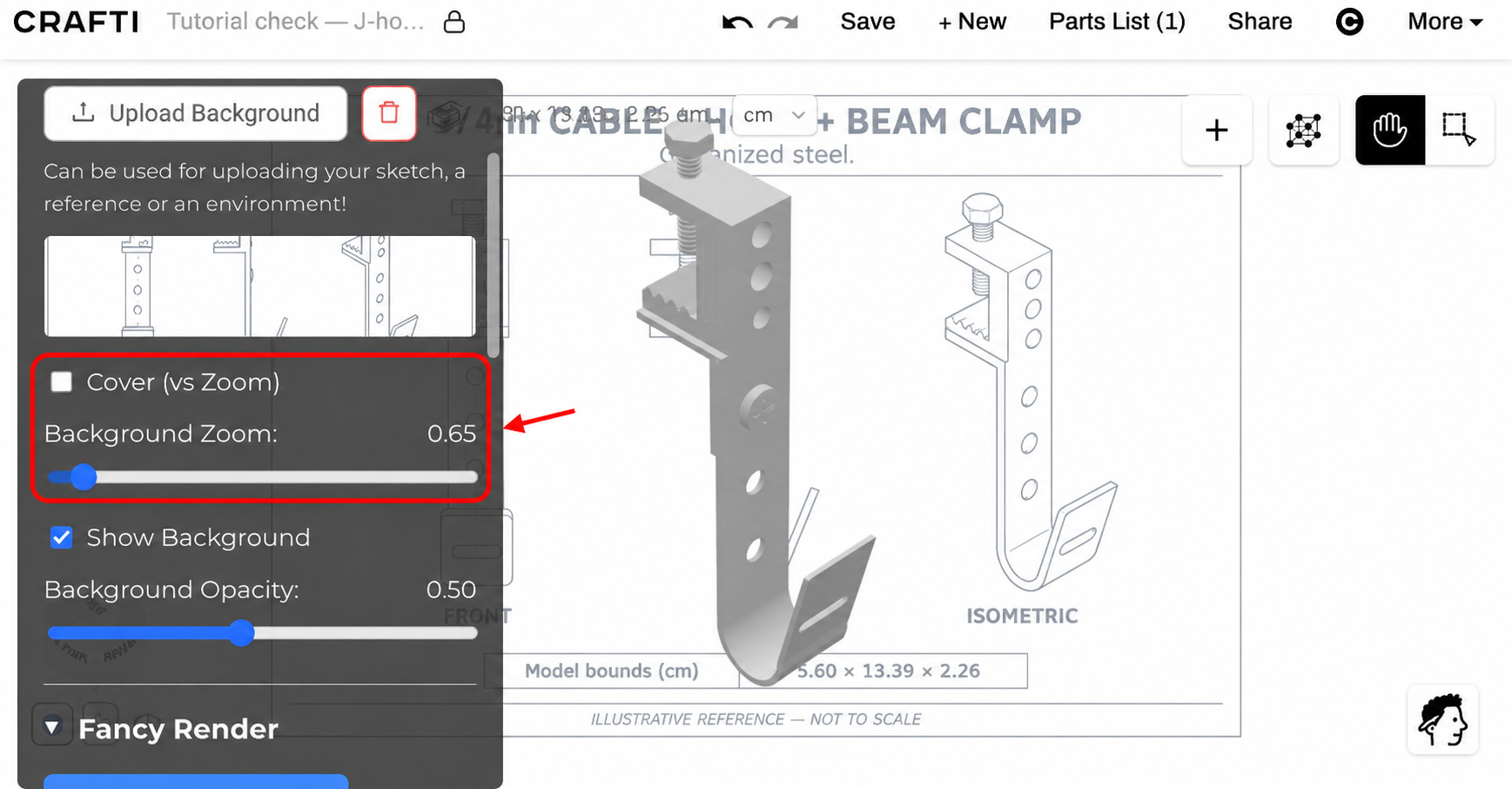
Use Crafti's measurement tools to check real dimensions. Changing the background zoom does not calibrate the sketch or resize the actual parts to match it.
Save and reopen
6. Close the Render Options panel and click Save after adjusting the image.
7. Reopen the saved design to continue working with the reference. You can return to Render Options → Scene to change its display later.
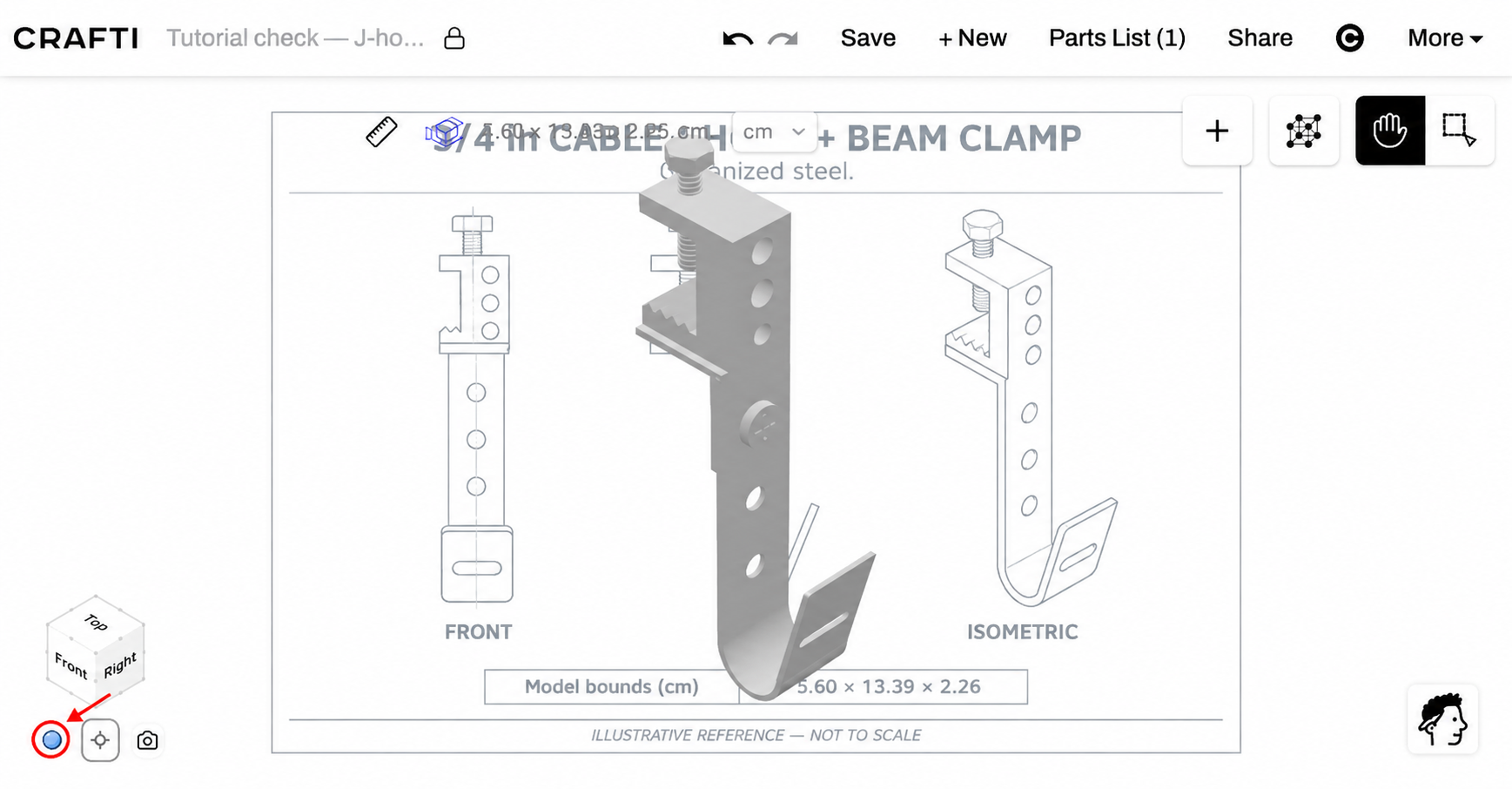
Keep the original file on your computer if you may want it again. Upload Background can also be used to replace the current reference with another image.
Background image or Crafti AI attachment?
Use Upload Background for a reference behind the scene while you design. Use the + menu in the Crafti AI message composer to attach an image when you want the assistant to interpret it as part of a request. Adding a scene background alone does not send an AI design request.
If the upload does not work
If Upload Background is disabled, sign in, finish saving the design, then reopen Render Options. A new design that has not completed its first save cannot upload a background.
If you see File size exceeds 5 MB, export a smaller copy and try again. The file must be below the limit. If you see an image-file warning, choose an image instead of a PDF, ZIP or 3D-model file.
If the preview appears but the background is hidden, enable Show Background. Increase Background Opacity if the reference is too faint, and check Cover and Background Zoom if its framing looks wrong.
If an upload fails, check that the design finished saving and try again. Keep your local source image. For the other scene controls, see How to Use Render Options.
Ready to try it?
Crafti runs in your browser on your phone or computer.