Use your existing ChatGPT subscription to power Crafti AI through the installed Crafti App. Connect Codex on your computer, then choose ChatGPT Subscription in Crafti's model picker.
Signing into Crafti and signing into ChatGPT are separate steps. Crafti uses the local Codex command-line tool; it does not merge the two accounts or transfer your subscription to Crafti.
What you need
Use a computer with the current Crafti App, a Crafti account with access to connected subscriptions, and an eligible ChatGPT account with Codex usage available. Connected subscriptions require Crafti Pro or an active trial when one is offered; check the access shown in your account.
Keep an internet connection. The Crafti App runs the connection on your computer, while model requests still go to the provider.
Install the Crafti App
Download the version for your computer:
Mac with Apple silicon (M1 or later)
On a Mac, open the downloaded DMG, drag Crafti into Applications and open it. On Windows, run the installer and open Crafti. Use the current download rather than an old shared installer.
Sign into your Crafti account in the app. If prompted to reload after signing in, save any open work first, then reload.
Connect Codex
1. In the Crafti App's menu bar, open Help → Provider Status. Help → Setup Guide opens the same connection setup. You may also be offered setup when you first open the app.
2. Find the Codex row. If it says Not installed, use Install when that button is offered, review the proposed installation and follow its prompts. Otherwise, follow the row's Documentation link and install the Codex CLI using OpenAI's instructions.
3. If Codex is not signed in, use Sign in when offered and complete the ChatGPT sign-in in the browser. If the setup shows a sign-in command instead, run codex login in your terminal and finish the browser flow.
Use ChatGPT sign-in for subscription access. Signing into Codex with an API key uses separately billed API access instead. OpenAI's authentication guide explains the difference.
4. Return to Crafti and click Check again, the circular-arrow button next to Command-line tools. Wait for the Codex row to show Connected. If it already says Connected, you can continue without signing in again.
Connected means the local tool is installed, signed in and answering. You only need Codex for this ChatGPT guide; connecting Claude Code as well is optional.
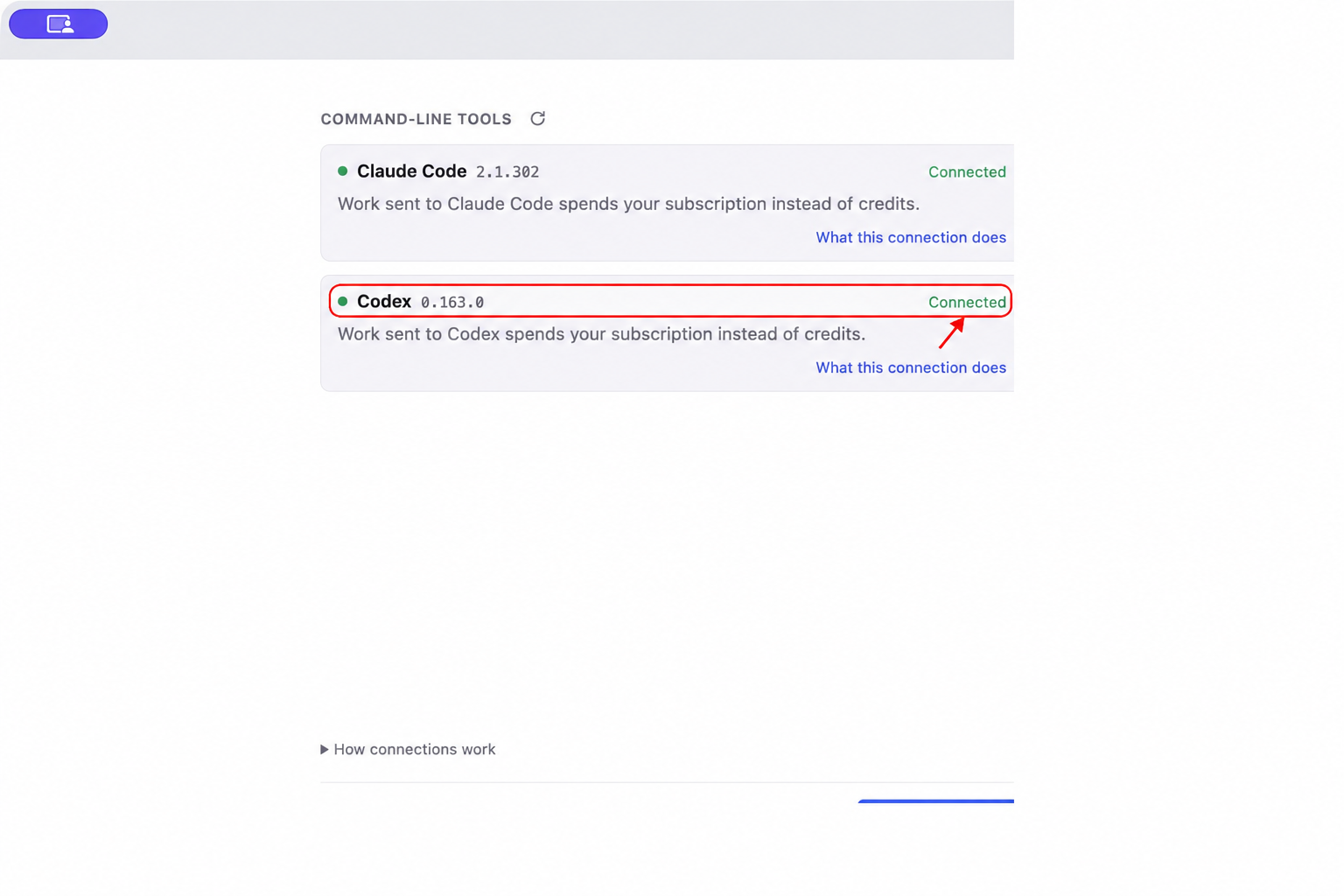
Review Crafti's connection notices and your provider's terms before connecting. Availability and provider requirements can change; a connection option in Crafti is not a guarantee that every account or usage pattern is supported.
Choose ChatGPT Subscription in Crafti AI
1. Open a new or existing design and open Crafti AI.
2. Click the model name at the bottom of the message composer. It may initially say Crafti AI.
3. Under Running on your machine, choose ChatGPT Subscription — choose a model.
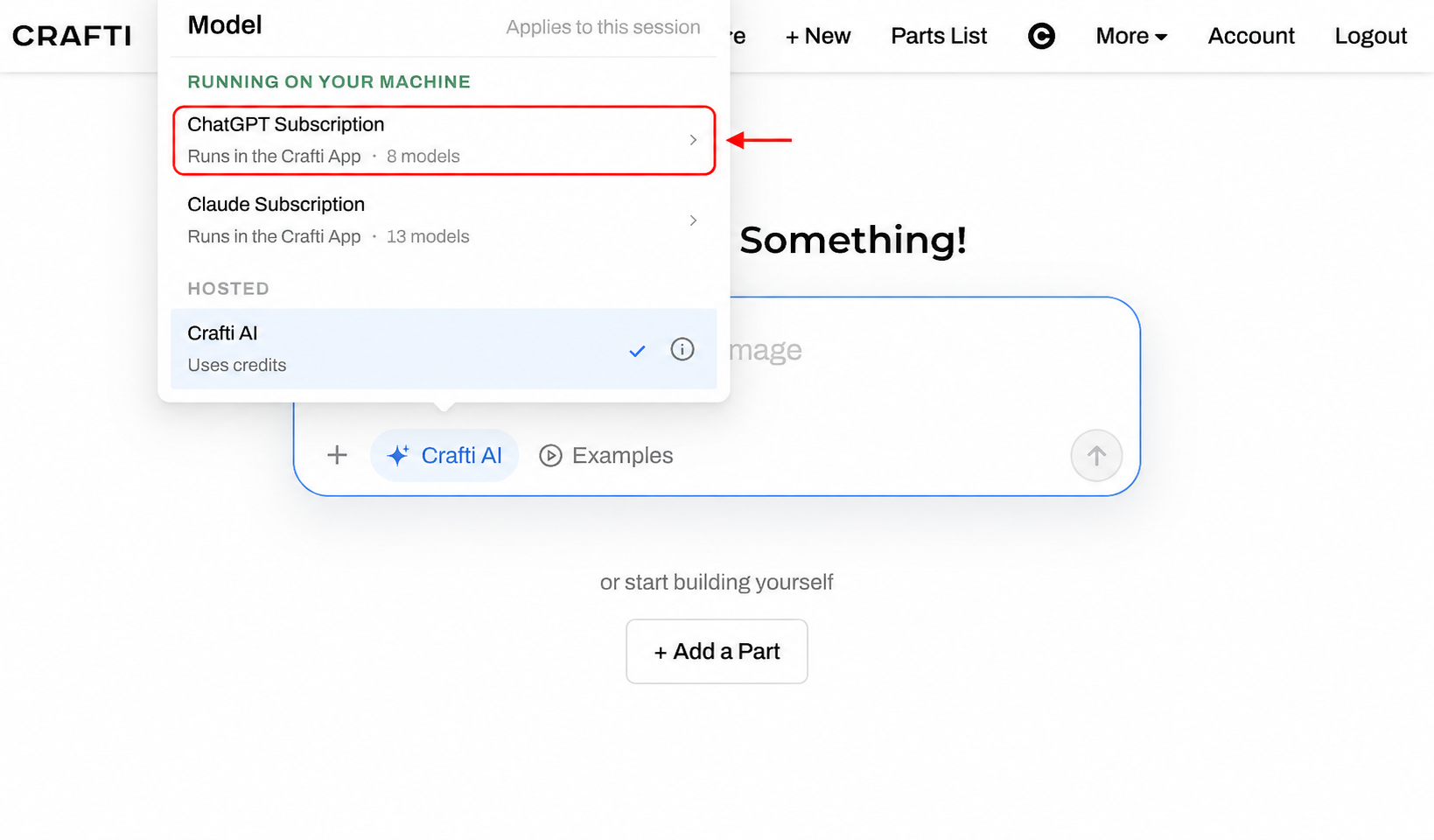
4. Pick an available model in that family. The family is labelled Runs in the Crafti App. Model names and availability can change, so use the choices currently offered.
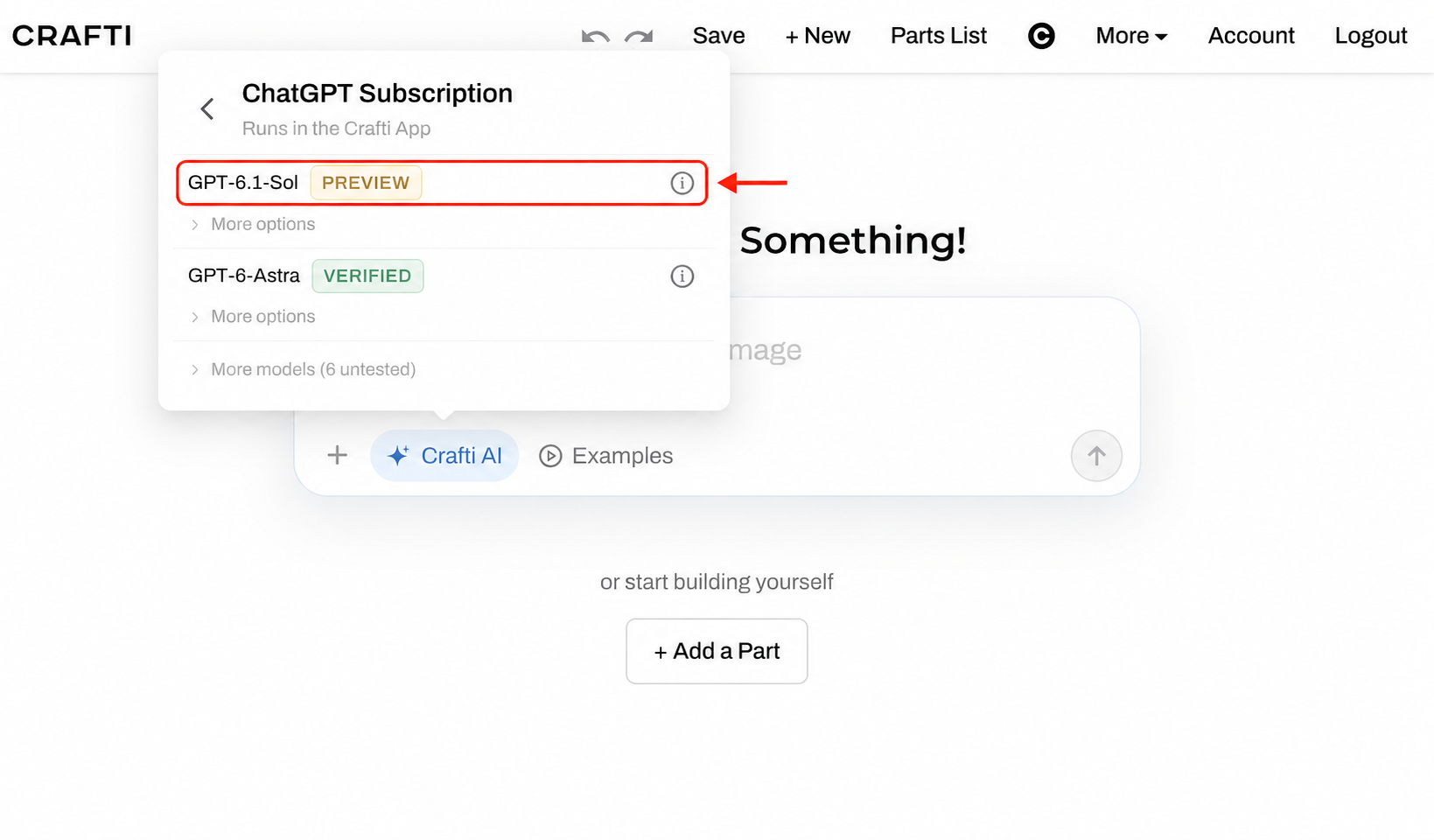
5. Check that the composer now shows your chosen model before sending your request. The picker applies to the current session; check it again when starting another session.
Leaving Crafti AI selected uses the hosted option labelled Uses credits. A model appearing in the menu alone does not prove the local connection is ready: check Codex's Connected state too.
Using Crafti in a browser
Keep the Crafti App running on the same computer with Codex connected. Sign into your Crafti account separately in the browser, then use the same model-picker steps. Signing into the desktop app does not automatically sign you into the browser.
Usage and limits
Requests routed through your ChatGPT subscription consume that plan's Codex allowance. The selected model, reasoning settings and the amount of work can affect usage. Your provider sets availability, limits and reset times.
Some other services within a Crafti workflow can still use Crafti credits. Connecting a subscription does not make every action free or unlimited.
If the connection is unavailable
Check that the Crafti App is open and that Help → Provider Status shows Codex as Connected. If it says Not signed in, finish sign-in; if it is still checking or not answering, try Check again and follow the displayed guidance.
Check access in your Crafti account. If the app asks you to sign in, upgrade, update or reload, follow the relevant notice. Save your work before reloading, because unsaved design changes can be lost.
If your provider allowance is exhausted, wait for its reset or choose another available route. Choosing the hosted Crafti AI option uses Crafti credits.
If you installed Codex or signed in after opening Crafti, return to Provider Status and click Check again. If a blank app view persists, update or reload the app before attempting to use a subscription model.
Ready to try it?
Crafti runs in your browser on your phone or computer.