Want to order the parts in your Crafti design and have them shipped to you? Use Parts List → Buy Parts to prepare a Home Depot shopping cart from eligible matched products. You review the cart, pay and choose an available delivery option on Home Depot's website.
Filling a cart does not place an order. Crafti prepares the retailer handoff; Home Depot handles checkout, delivery and the resulting order.
Before you start
Use Crafti in a desktop browser and sign into your Crafti account. Open a design containing parts that have supported retailer matches. You do not need to ask AI to fill the cart.
This guide covers the Home Depot option that opens homedepot.com, the US retailer. A retailer appearing in Crafti does not guarantee delivery to your country or address. Check the actual destination and available fulfillment options at Home Depot.
Open Buy Parts and check your location
1. Open your design and click Parts List in the editor's header. In a compact header, open More ▾ to find it.
2. Choose the Buy Parts tab. Allow the store matches to finish loading.
3. Check the shopping location shown at the top. If prompted, enter the US ZIP code where you are shopping. Use Change to update an existing ZIP, or Shopping in the US? when that option appears. Enter your final delivery address later at Home Depot checkout.
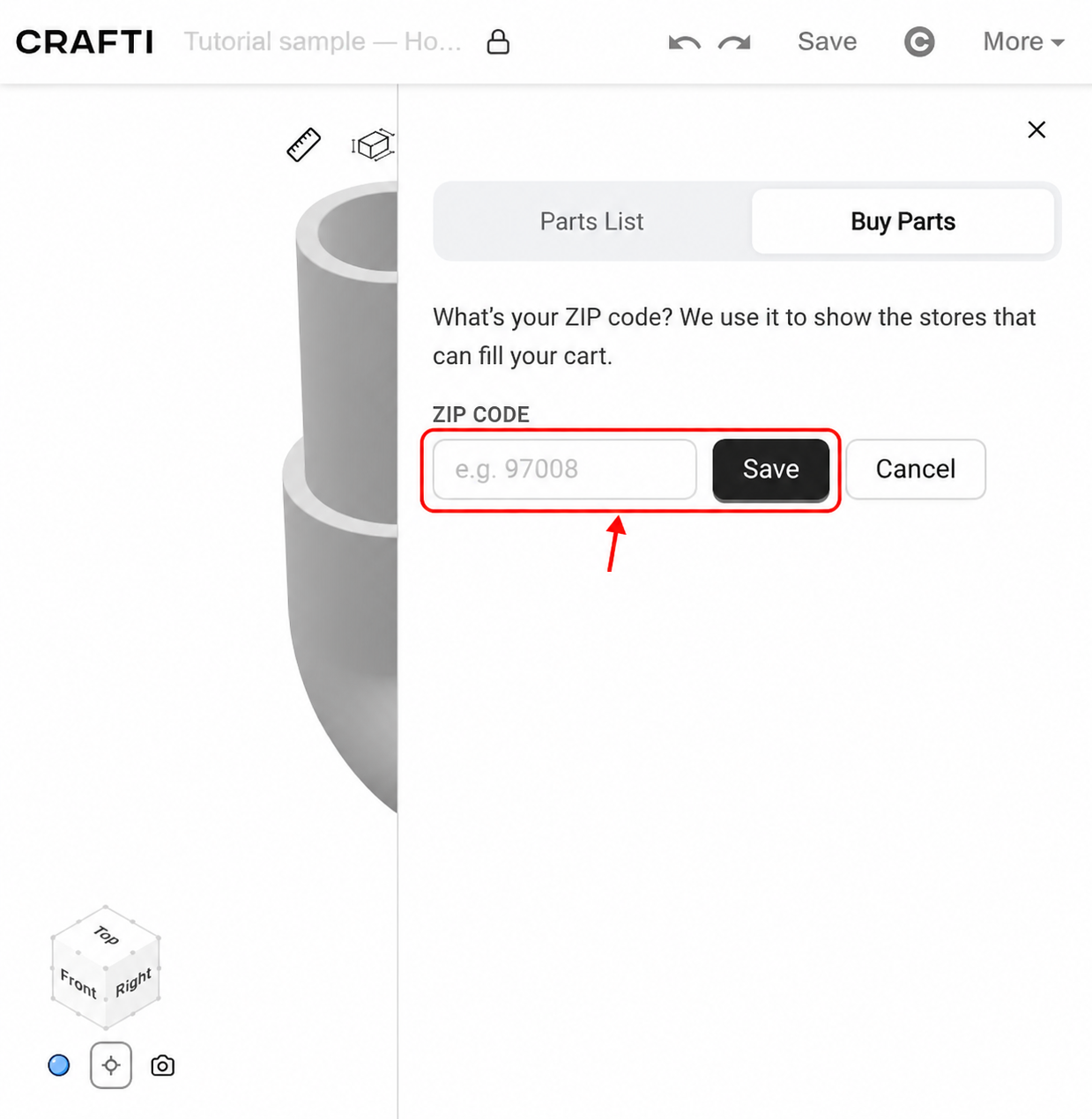
If Crafti shows a note that the listed retailers are in the US, treat it as a coverage notice, not a promise of international shipping.
Choose Home Depot and review the products
4. Choose Home Depot in the store selector for each part you want to buy there. If Set Store for All Parts is available, select Home Depot and click Apply; review any parts that keep another store because they are unavailable at Home Depot.
Use Skip (I have it) for parts you do not need to buy. A design can contain products for multiple stores; filling the Home Depot cart handles the eligible Home Depot rows.
5. Check the matched product title and open View on Home Depot to inspect its product page. Confirm the size, material, connection style, variant and sale unit against your design. A store match still needs your review.
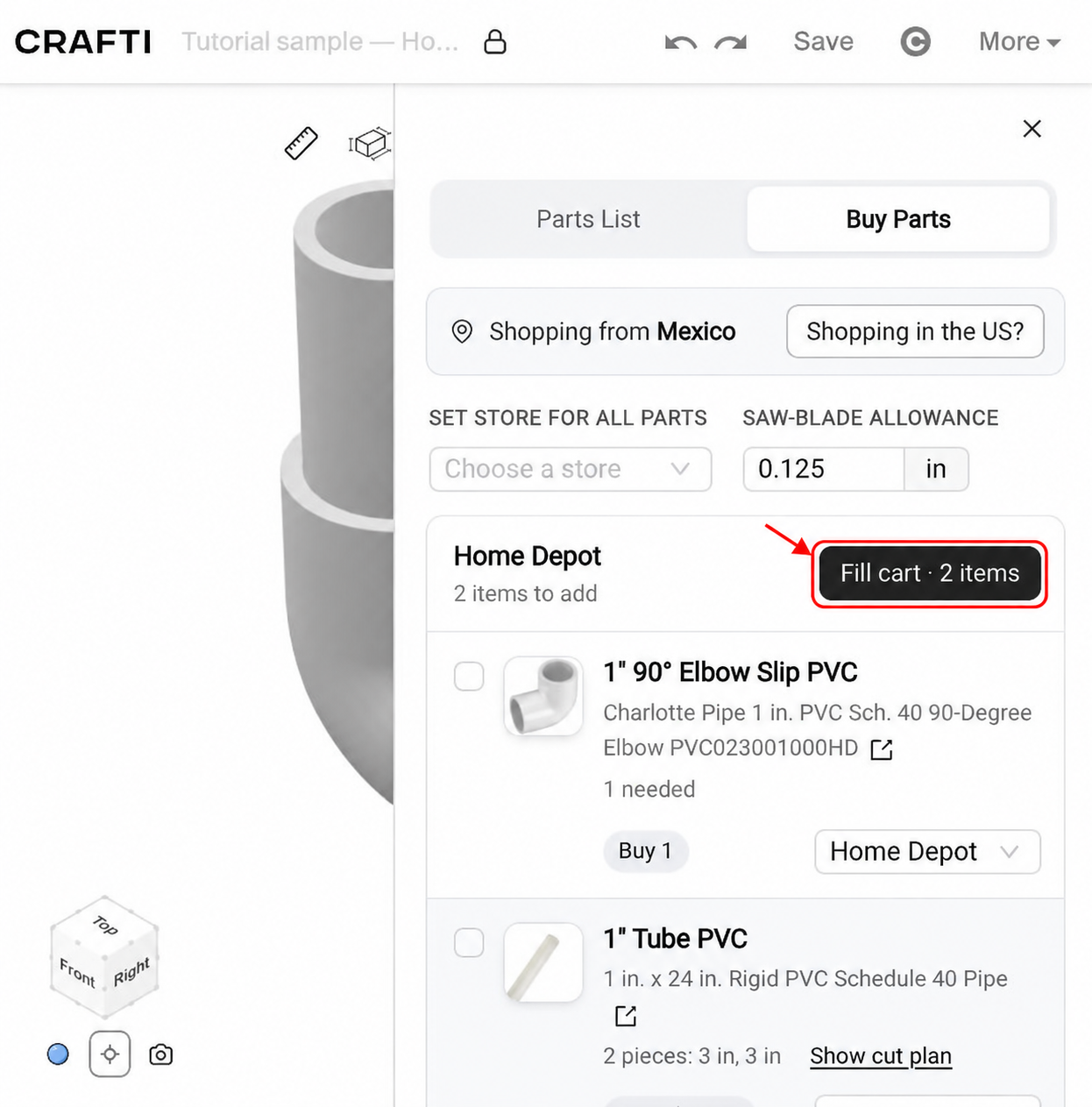
Check stock lengths, packs and quantities
The design's piece count can differ from the quantity you need to purchase. In the example, two 3-inch pipe sections fit into one 2-foot stock pipe, so the cart needs one stock pipe plus one elbow. Those are two product rows for a three-piece design.
Use Show cut plan where available to see the cuts assigned to each stock length. Check the Saw-blade allowance for your cutting process, as well as stock lengths, pack sizes and any additional supplies you need. The cart contains the stock product; it does not order custom-cut pieces for you.
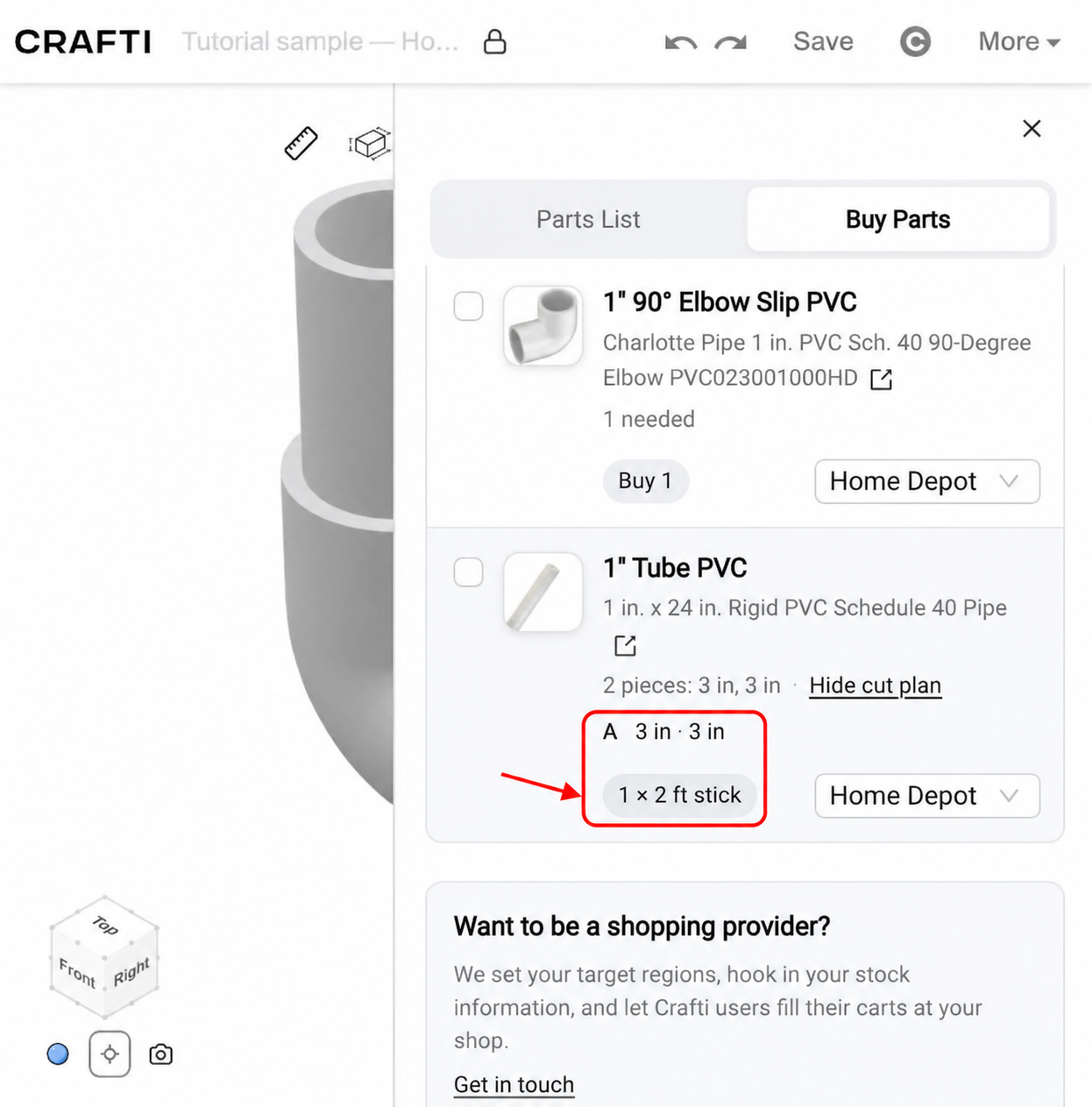
A row with a quantity or stock-length warning may be excluded from the fillable list. For example, a required piece longer than the matched stock pipe needs a different product or purchase plan. Review missing or unavailable parts separately.
Review and fill the Home Depot cart
6. Under the Home Depot heading, click Fill cart. This opens Fill Your Home Depot Cart; opening that review can also save your design in the background.
7. Review the products and purchase quantities again. Use the checkboxes in this confirmation dialog to exclude anything you do not want sent. These are separate from any checkboxes used to set stores in bulk.
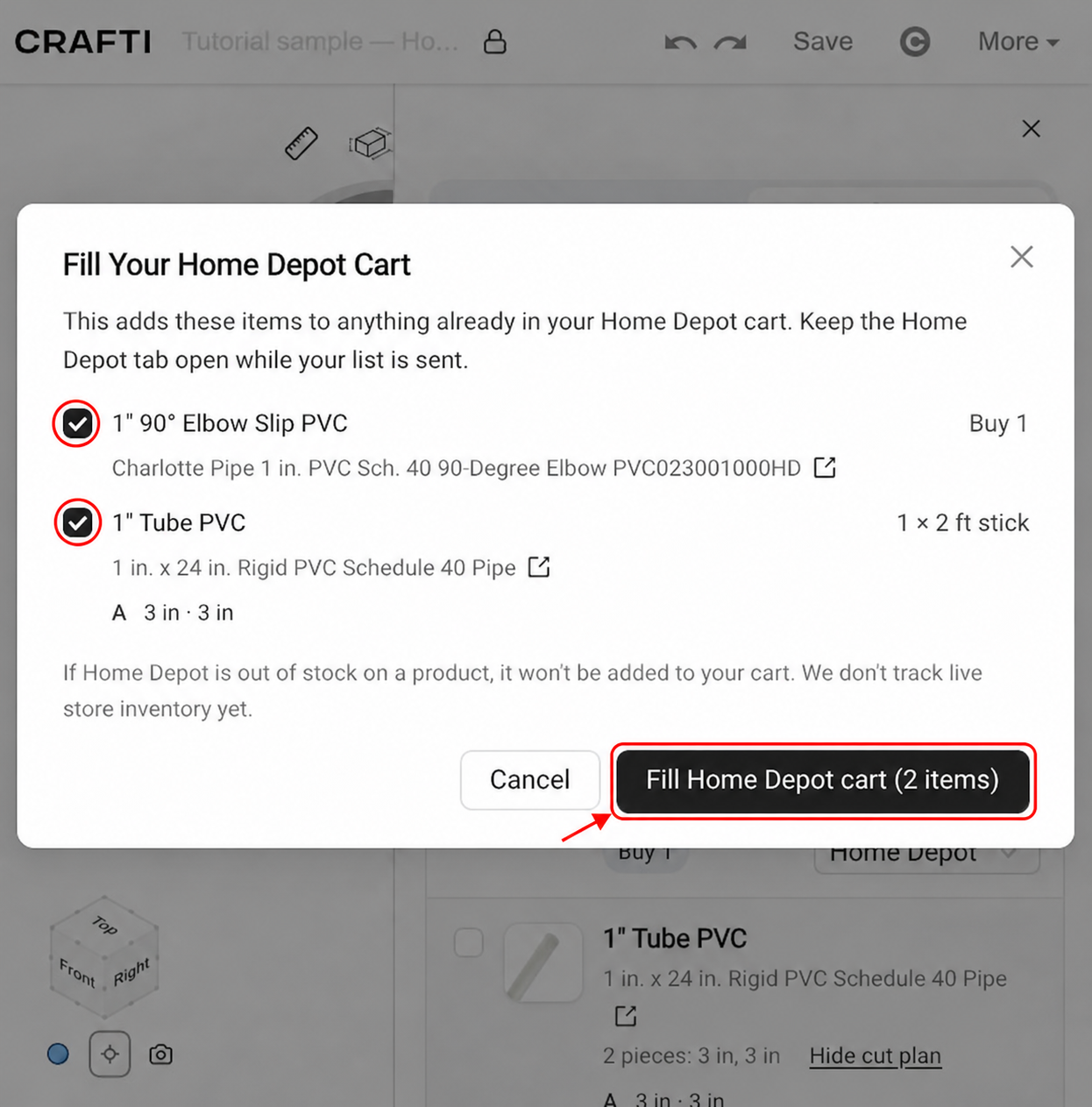
8. When the list is correct, click Fill Home Depot cart. Keep both Crafti and the newly opened Home Depot tab open while the list is sent. Allow the retailer tab to open if your browser asks.
This adds products to anything already in your Home Depot cart. It does not replace the existing cart. Do not repeatedly fill the same list without checking the cart first, because it can add the quantities again.
Crafti does not track live Home Depot inventory. An out-of-stock product may not be added, and a sent handoff is not proof that every item reached the cart. Use Review cart when offered and check the retailer's actual cart before continuing.
Complete checkout and arrange delivery
9. On Home Depot, review every product, quantity, stock length or pack size, and price. Check for missing items and remove duplicates or older cart items you no longer want.
10. Continue through Home Depot's checkout. Enter your delivery address, then choose from the shipping, delivery or pickup options Home Depot offers for those products and that location. Review the available dates, fees, taxes and final total before paying.
Home Depot's product availability and delivery options can vary. Its customer FAQ explains that eligible product pages show the available fulfillment choices. Consult Home Depot's delivery information for current options; no delivery date or cost is guaranteed by Crafti.
11. Complete the purchase on Home Depot and keep its order confirmation. Home Depot handles payment, delivery, order changes, returns and product issues. A Crafti cart-fill action is not an order confirmation.
If something is missing or does not open
If Buy Parts is disabled, wait for matching to finish. The design may not contain a part with an available supported retailer match. Custom or generated parts may need fabrication or a separate source.
If you can browse products but cannot fill a cart, check that you are signed into Crafti and using a desktop browser. Cart filling is currently a desktop workflow.
If the Home Depot tab is blocked, allow the popup for the Crafti site and retry once. If the handoff seems incomplete or you closed a tab too early, inspect the Home Depot cart first before using Fill again. Add missing products manually or adjust the list after checking their availability.
For a printable inventory of the design, see How to View and Download Your Parts List. A parts-list PDF is useful for checking quantities, but it does not place an order or reserve store inventory.
Ready to try it?
Crafti runs in your browser on your phone or computer.