Open Parts List to see the components in your Crafti design, then use Download parts list PDF to keep a copy for planning or shopping.
Open the parts list
1. Open a design that contains parts.
2. Click Parts List in the editor's top bar. The button can also show the number of parts in the design.
3. Stay on the Parts List tab. Buy Parts, when available, is a separate workflow for choosing retailer products and preparing carts.
4. Expand a part-type row to inspect its items. The list identifies the part, material and quantity; supported length-based parts also have length information.
On smaller screens, header actions may be placed in More ▾. If you cannot find Parts List, check that menu or use a wider browser window.
The list reflects the design you are working on. After adding, deleting or changing parts, check it again before downloading or shopping.
Download a PDF
1. With the list open, select the PDF icon labelled Download parts list PDF near the top of the panel.
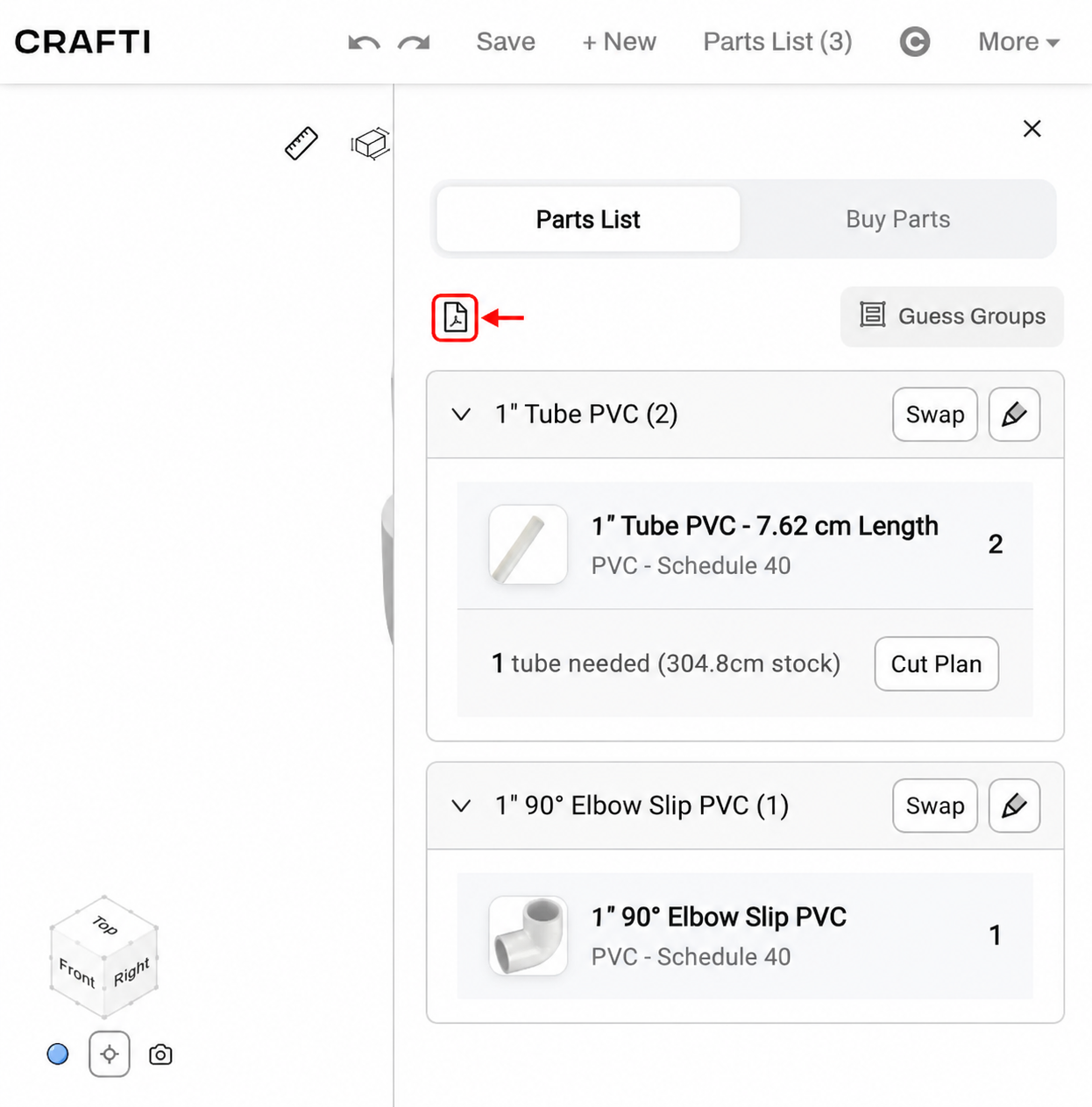
2. Allow the document to finish generating. If models are still loading, wait for them before trying again.
3. Open the downloaded PDF from your browser's downloads. Its filename uses the design name followed by -parts-list.pdf.
4. To print it, open the PDF and use your PDF viewer's Print command. You can also keep it on your phone for reference at the store.
The PDF is a snapshot. If you change the design afterwards, download a new copy. Saving your design before you leave the editor also lets you reopen the same work later.
Check the list before buying
The quantity in a design is not always the quantity of store packs, boards or tubes you need to purchase. Check:
- Each part's type, size, material and variant.
- Required piece lengths and the stock lengths available from your supplier.
- Items sold in packs, cutting waste and any additional fixings or supplies you need.
- Custom or generated parts, which may need fabrication and may have no matching retail product.
Where supported, expand a stock-part row and use Cut Plan to inspect how pieces fit into a stock length. If Buy Parts is available, review its store-specific quantities separately and check the final retailer cart before checkout.
Common questions
Is this an assembly guide?
No. The parts list tells you what is in the design. An assembly guide explains an assembly sequence and is opened separately through Assembly. You do not need to generate a new assembly guide just to download a parts list.
Do I need to use AI?
No. The Parts List button and PDF action are available directly in the editor. Guess Groups is an optional, separate AI action; it is not required to download the list and can use credits.
Why is the list empty or the PDF unavailable?
Add parts to the scene first. If you have just opened or edited a design, allow its models and details to load. If a download fails, leave the list open, wait for loading to finish and try the PDF action again. Check your browser's download controls if the file does not appear where expected.
Ready to try it?
Crafti runs in your browser on your phone or computer.